
Want to try on clothes without actually wearing them? YoChanger's AI clothes changer makes it possible in just a few clicks. This complete guide will walk you through everything you need to know to get started.
What is YoChanger?
YoChanger is a free online AI clothes changer that lets you virtually try on any outfit. Using advanced artificial intelligence, it seamlessly replaces clothing in your photos with realistic results—perfect lighting, natural shadows, and accurate fabric textures.
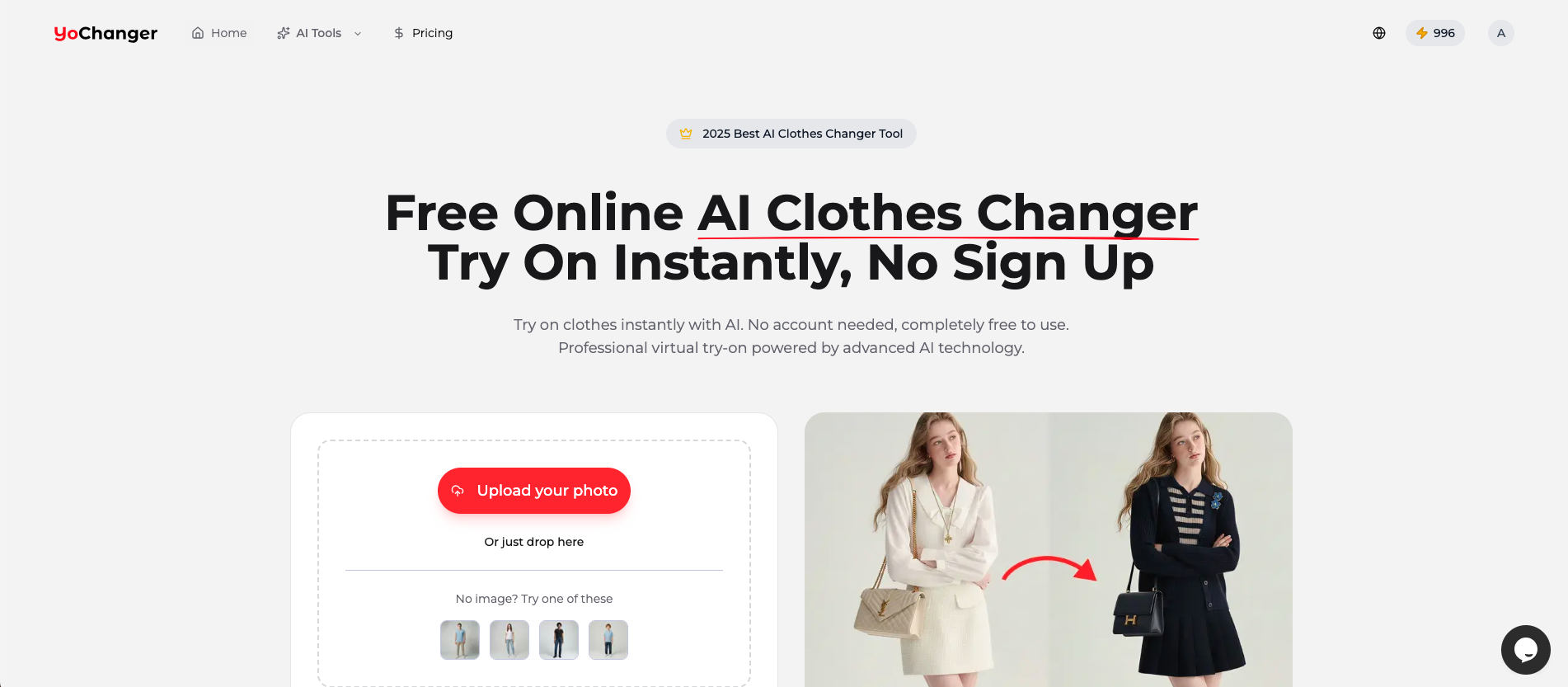
Key Features:
- ✅ Free to use - No credit card required
- ✅ No sign up needed - Start instantly
- ✅ Multiple AI tools - Clothes changer, color changer, suit changer, and more
- ✅ Fast processing - Results in ~20 seconds
- ✅ Privacy first - Photos auto-deleted after processing
Getting Started
Accessing YoChanger
- Open your browser and go to yochanger.com
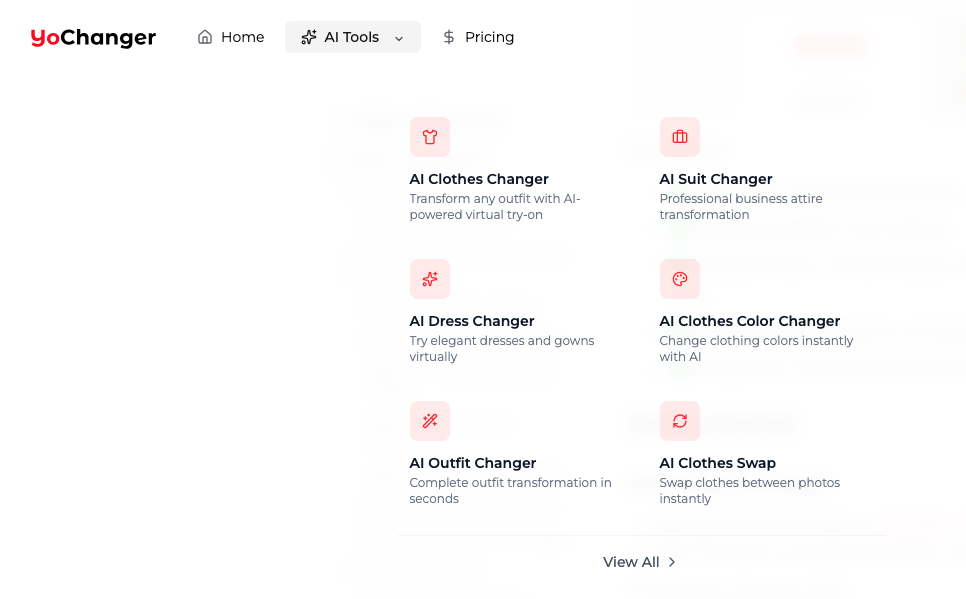
- Click "Try Now" or navigate to AI Tools → AI Clothes Changer
💡 Tip: Bookmark the page for quick access later!
How to Use AI Clothes Changer - Step by Step
Step 1: Upload Your Photo
Click the "Upload Photo" area or drag and drop your image directly.
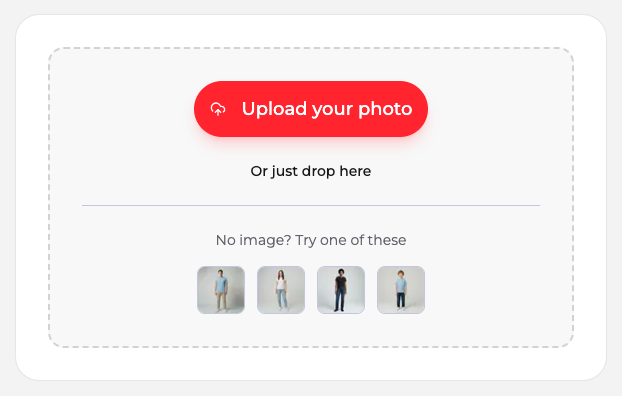
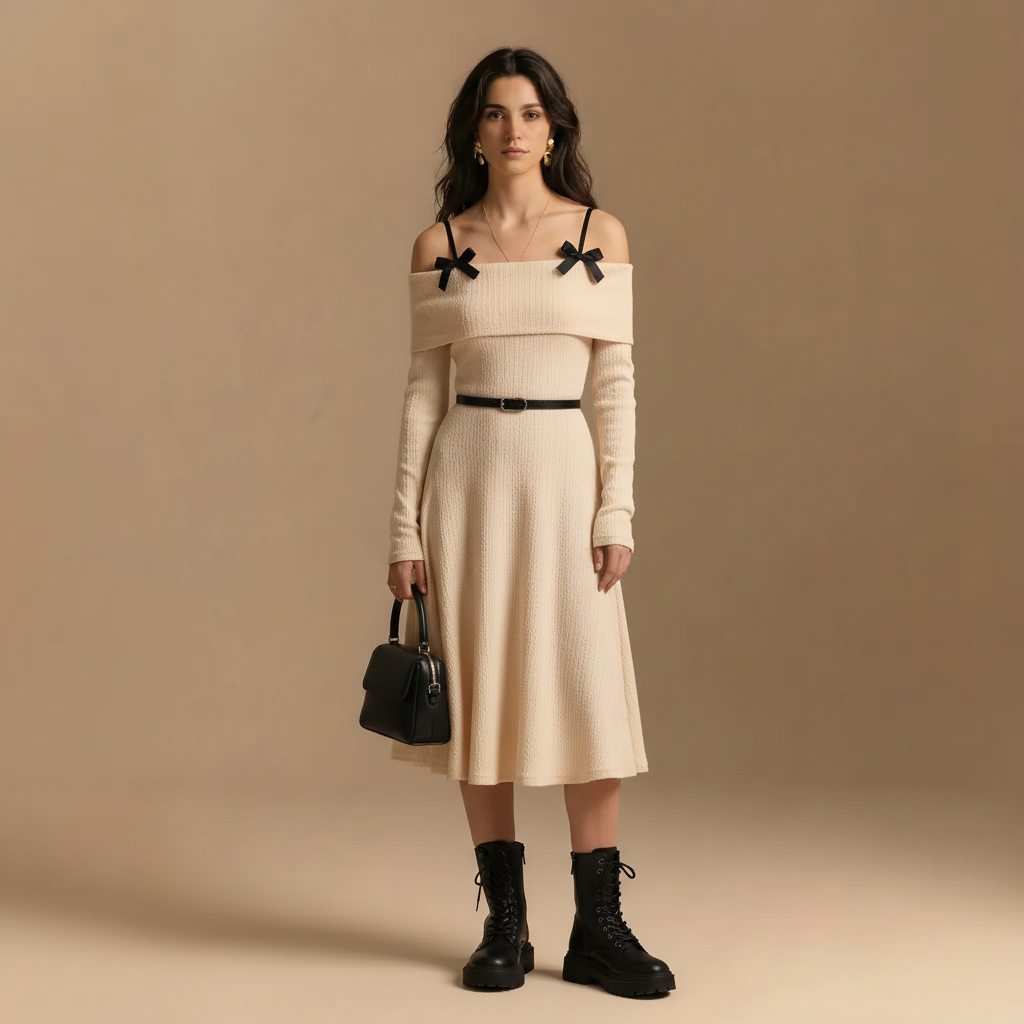
Photo Requirements for Best Results:
- Clear, well-lit photo
- Person facing forward or slightly angled
- Full body or upper body visible
- Supported formats: JPG, PNG, WebP
- Maximum size: 10MB
Good Photo Examples:
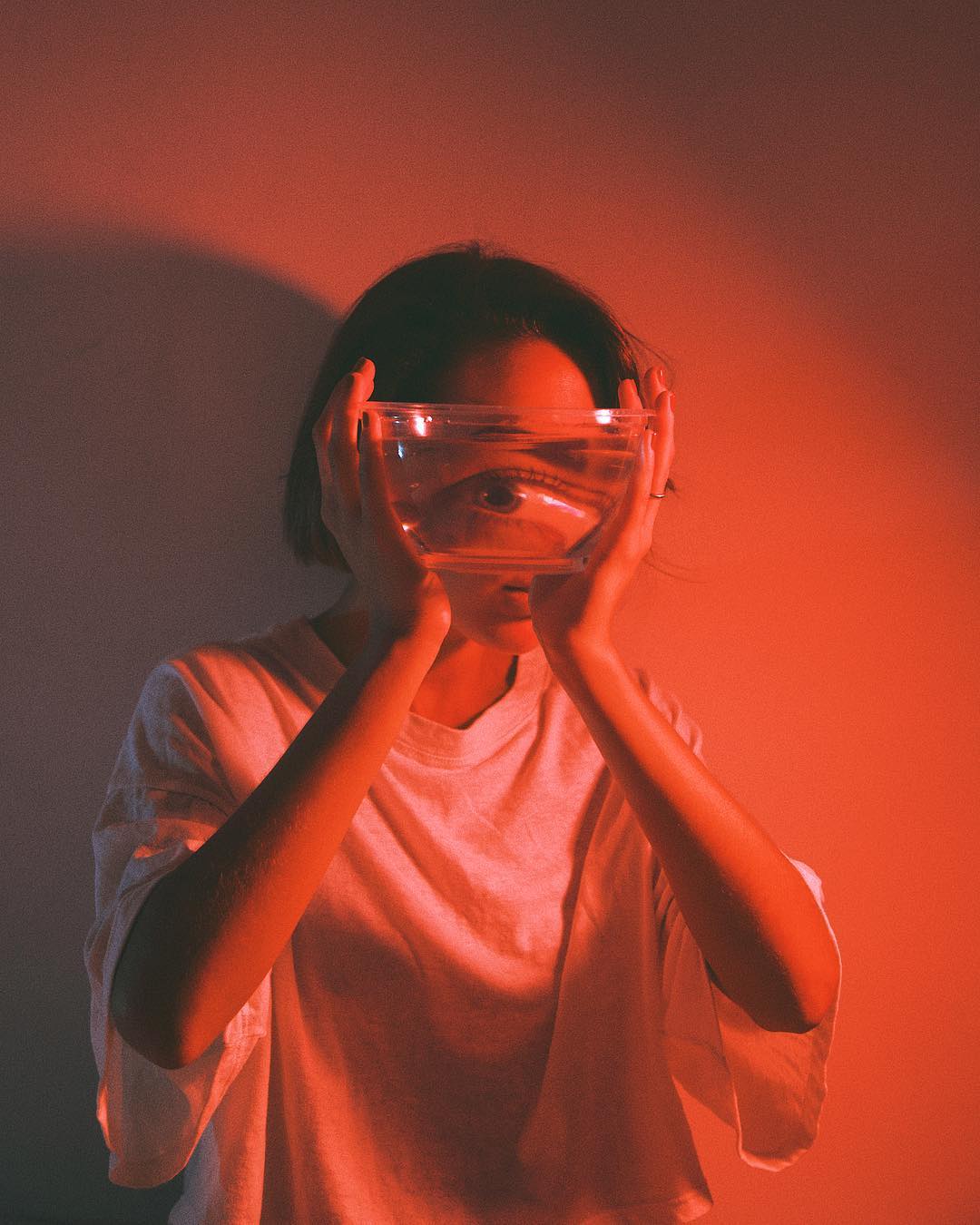
Photos to Avoid:
Step 2: Choose Your Clothing
You have three options to select the clothes you want to try on:
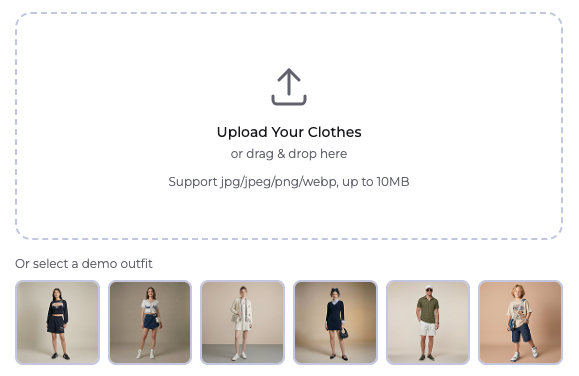
Option A: Upload Clothing Image
Upload an image of the specific garment you want to try on.
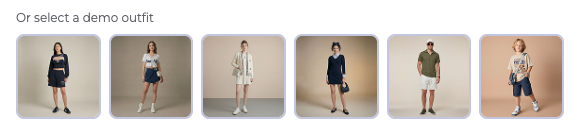
Option B: Use Demo Collection
Choose from our curated collection of demo outfits.
Option C: Describe with Text
Describe the clothes you want, and AI will generate them.
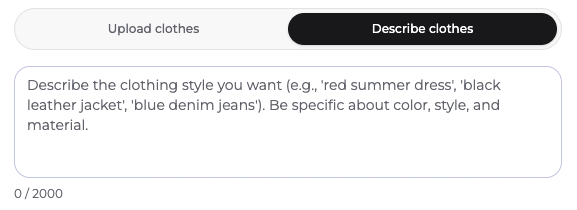
Example prompts:
- "White business shirt with navy blue tie"
- "Red casual t-shirt"
- "Black leather jacket with white inner shirt"
Step 3: Generate Your Result
Click the "Generate" button and wait approximately 20 seconds.
You'll see a progress indicator showing:
- Preparing AI model...
- AI is changing clothes...
- Clothes changed successfully!
Step 4: Download Your Image
Once complete, your result will appear. Click "Download" to save.
⚠️ Note: Free users will see a watermark on downloads. Upgrade to a paid plan for watermark-free images.
Advanced Features
High Quality (HQ) Mode
For professional results, enable High Quality Mode to get:
- Higher resolution output (2K or 4K)
- Better fabric detail
- More accurate lighting

Credit Cost:
| Mode | Credits |
|---|---|
| Standard | 1 credit |
| HQ 2K | 2 credits |
| HQ 4K | 4 credits |
AI Clothes Color Changer
Want to change just the color of existing clothes? Use our AI Clothes Color Changer tool:
- Go to AI Tools → AI Clothes Color Changer
- Upload your photo
- Select clothing parts to change
- Choose new colors
- Generate!
Other AI Tools
YoChanger offers specialized tools for different needs:
| Tool | Best For |
|---|---|
| AI Suit Changer | Professional business attire |
| AI Dress Changer | Dresses and gowns |
| AI Outfit Changer | Complete outfit transformation |
| AI Clothes Swap | Swap clothes between two photos |
Understanding Credits
How Credits Work
- New users: 3 free credits upon registration
- Unregistered users: Limited free trial
- Subscribers: Monthly credit allocation
Credits are only deducted when generation succeeds. Failed generations don't cost credits.
Subscription Plans
| Plan | Credits/Month | Price |
|---|---|---|
| Basic | 100 | $9.9/mo |
| Standard | 350 | $19.9/mo |
| Professional | 1200 | $49.9/mo |
💰 Save 20% with annual billing!
Tips for Best Results
1. Use High-Quality Source Photos
The better your input photo, the better your results.
2. Match Lighting Conditions
For most realistic results, try to match the lighting in your person photo with the clothing image.
3. Simple Backgrounds Work Best
Photos with clean, simple backgrounds produce cleaner results.
4. Experiment with Different Poses
Standing poses with visible clothing areas get the best results.
5. Try Multiple Variations
Don't settle for the first result—try different clothing options to find your perfect look!
Troubleshooting Common Issues
"Generation Failed" Error
Possible causes:
- Image too large (max 10MB)
- Unsupported format
- Network connection issue
Solution: Resize your image or try a different format.
Unrealistic Results
Possible causes:
- Poor source photo quality
- Person not clearly visible
- Complex poses or angles
Solution: Use a clearer, front-facing photo with good lighting.
Slow Processing
Possible causes:
- High server load
- Large image file
Solution: Try during off-peak hours or use a smaller image.
Frequently Asked Questions
Is YoChanger really free?
Yes! You can try YoChanger completely free with no sign up. Registered users get 3 free credits as a welcome gift.
Are my photos safe?
Absolutely. All uploaded photos are automatically deleted after processing. We never store or use your images for any other purpose.
Can I use results commercially?
Commercial use requires a paid subscription with commercial license. Free tier is for personal use only.
What's the difference between tools?
Each tool is optimized for specific use cases. AI Clothes Changer is the most versatile, while specialized tools (Suit Changer, Dress Changer) offer curated options for those specific styles.
Conclusion
YoChanger makes virtual try-on easy, fast, and free. Whether you're shopping online, creating content, or just having fun with fashion, our AI clothes changer delivers realistic results in seconds.
Ready to transform your style?
👉 Try YoChanger Free Now - No Sign Up Required
Need Help?
- 📧 Email: [email protected]
- 💬 Check our FAQ page
- 📖 Read more guides on our Blog